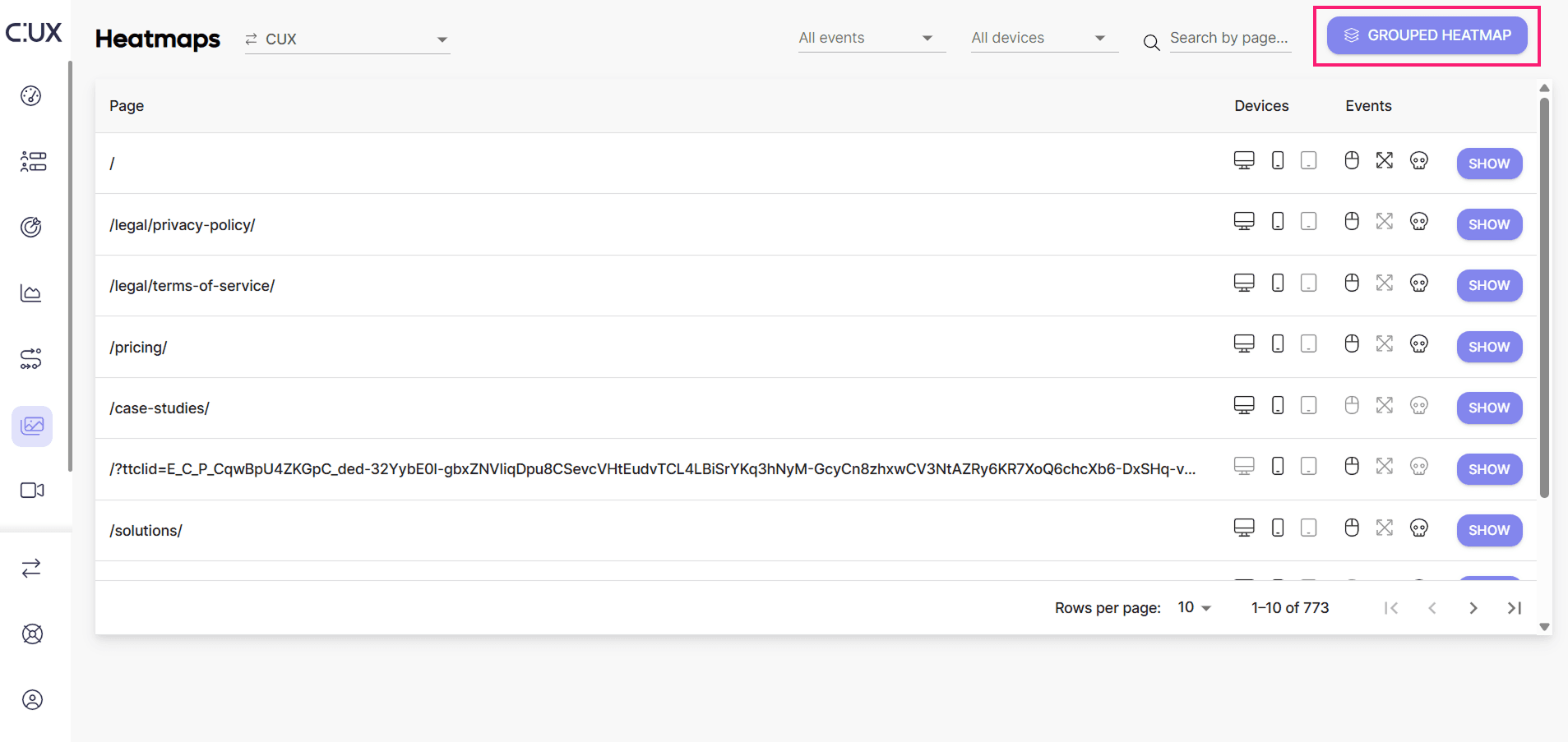
A grouped heatmap shows you data aggregated for several pages. The grouped heatmap works like a regular heatmap with all its features, but the hot and cold areas are shown for more than one page.
When to use grouped heatmaps? Grouped heatmaps help you overcome technical constraints. They also add a different angle to your observations.
- Aggregating pages listed separately It happens that visitors land on your pages using links embedded on different sites. One example of this is social media, Facebook in particular. Each time you share a link to your site on Facebook and someone clicks the link there, Facebook adds a unique fbclid parameter to a URL a user lands at. For CUX, each of such URLs will be considered a separate page, and each of them will be presented as a separate heatmap on the Heatmaps page.
- Aggregating pages based on a single template Frequently, our websites comprise numerous pages that closely adhere to a common template. These pages maintain consistent layouts and object placements, with the primary distinctions lying in the variation of images and content. Despite slight differences in URL patterns for each page, they share a fundamental structure. In the case of an online store, this could encompass product pages or category listings, while other websites may include blog articles, user profiles, job postings, and various other content types.
In both scenarios, analyzing individual heatmaps for each page can be counterproductive. Whether you're interested in assessing webpage activity regardless of traffic source or evaluating the effectiveness of your layout across a group of pages, a grouped heatmap offers an efficient solution. It allows you to swiftly gauge overall user interaction trends and the performance of your layout across a set of similar pages. This consolidated approach streamlines the analysis process, providing a quick and comprehensive overview of user behavior and engagement patterns across the designated group of pages.
Grouping pages into single heatmaps To create a grouped heatmap perform the following steps:
- Go to Heatmaps.
- Click "Grouped Heatmap". This opens a panel where you can select grouping conditions.
- Select a grouping condition. You can use one of 5 options: Contains (selected by default), Starts with, Ends with, Matches, and Regular expression. Each of the conditions is a shortcut that allows you to skip entering full URLs.
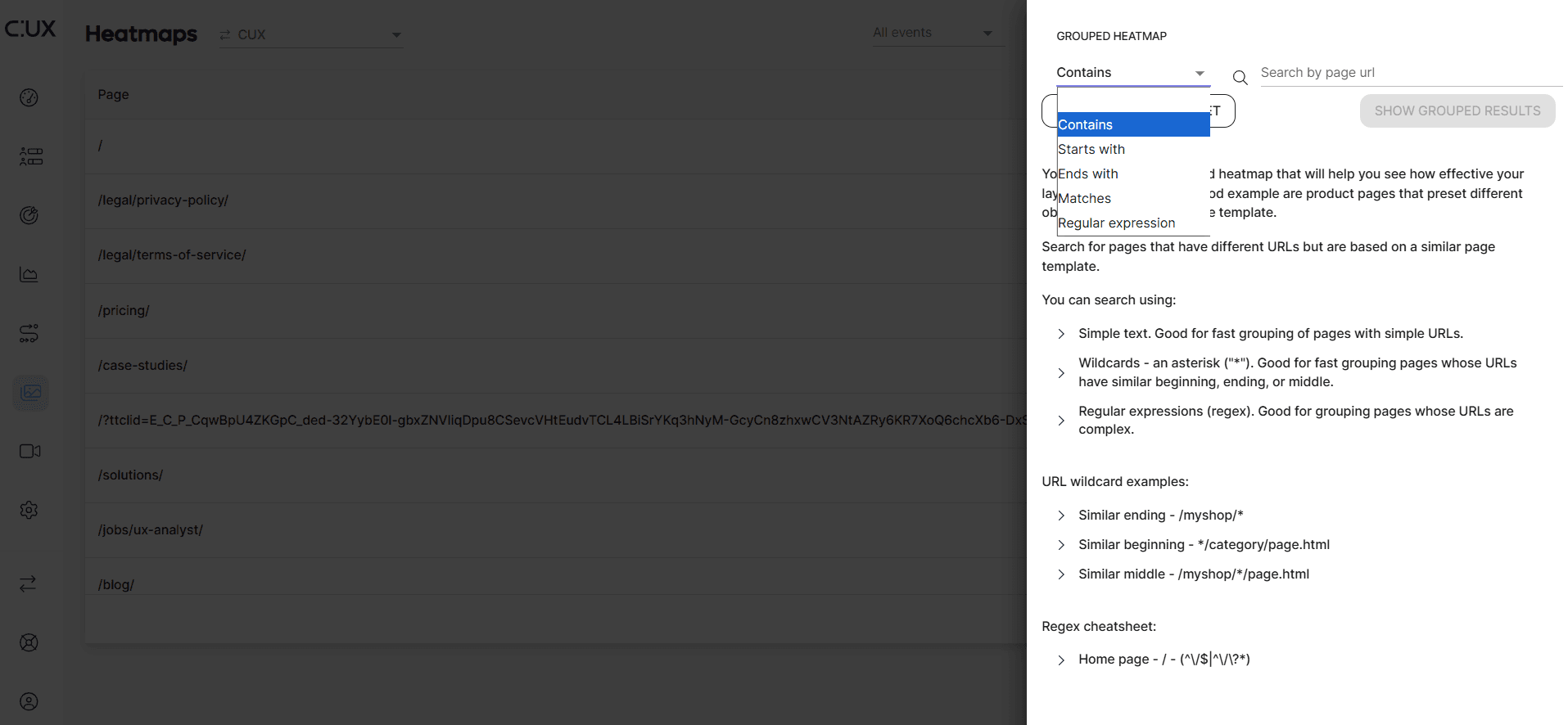
- Enter a part of the page addresses in the Search by URL field. You have a few options:
- Simple text. Good for fast grouping of pages with simple URLs. Works for conditions: Contains, Starts with, Ends with, and Matches.
- Wildcards – an asterisk symbol *. Good for fast grouping of pages whose URLs have a similar beginning, ending, or middle - works with any condition.
- Regular expressions (regex). Good for grouping pages whose URLs are complex or change dynamically - works with Regular expression condition.
- Click the “Show grouped results” button to jump to your grouped heatmap.
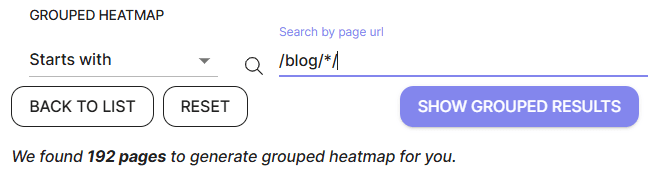
Note that when you enter values into the Search by URL field, the table in the background shows a filtered list of addresses. This gives you a preview of the page addresses selected for grouping. You can also see how many pages were found within your filter pattern:
CHEATSHEET
-
Wildcard examples URLs with similar ending –/myshop/*. URLs with a similar beginning – /category/page.html URLs with similar middle – /myshop//page.html. Useful when you want to skip part of the address, for example, category names.
-
Regex example: The home page is represented by the slash symbol (/). However, we can’t simply use the Contains grouping condition, as every URL on the website contains this symbol. To select URLs matching the homepage, with or without parameters, use the following regular expression: (^/$|^/?.*). This regex will help you create a grouped heatmap for any homepage visit, for example:
- /
- /?utm_source=newsletter
- /?ref=campaign123
All of these URLs will be grouped together in the heatmap as the homepage.