Visit recordings provide a more detailed view of individual user visits on a website. They record and play back the entire user interaction, including mouse movements, clicks, and scrolling.
Visit recording is a great tool to analyse in-detail the interaction between a single user and the website, while heatmaps show the overall trends based on the multiple users action on a certain page.
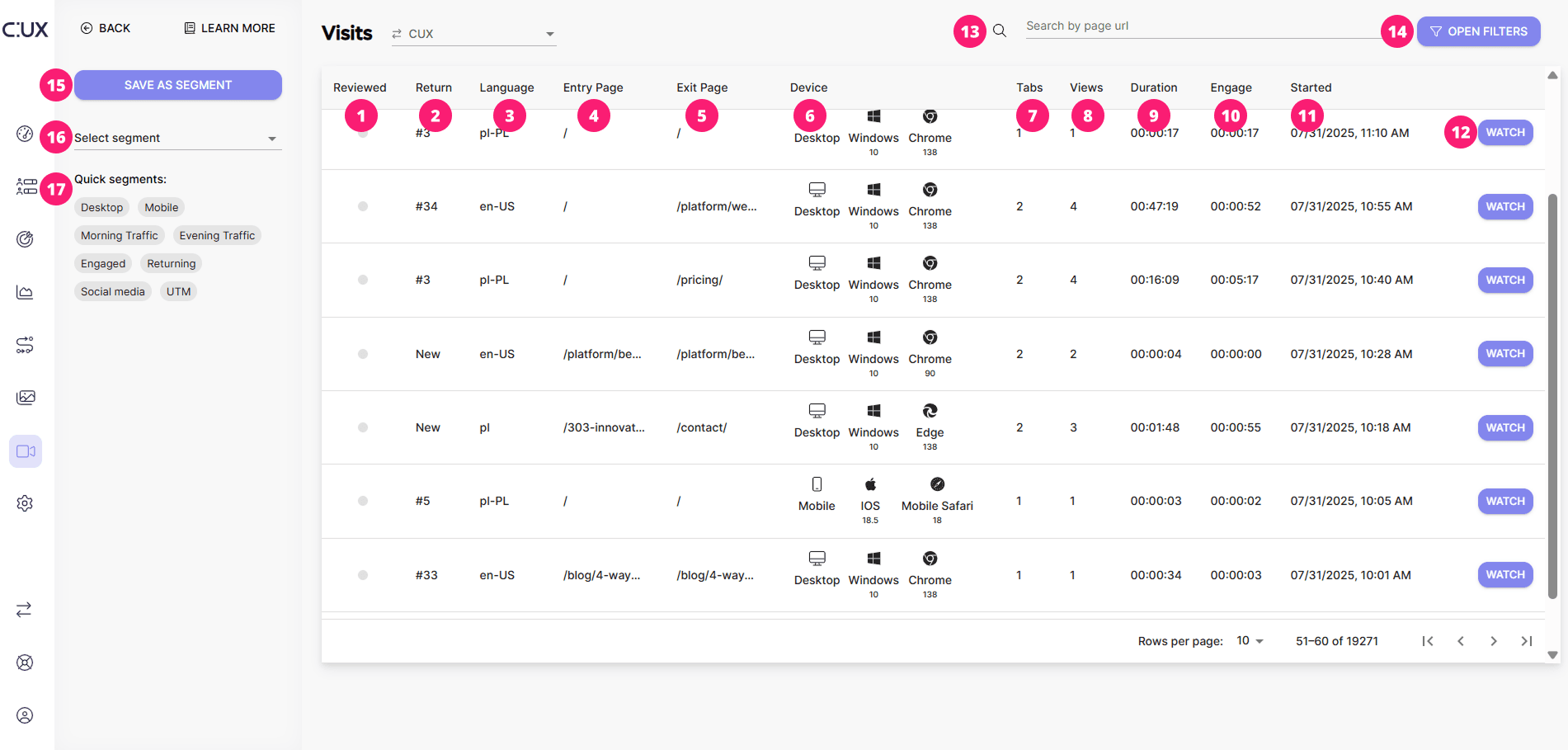 On the main Visits page you can see:
- Reviewed. This is an indicator that shows whether you’ve opened this recording before
- Return. Indicates the number of times a specific user has returned to the website. This metric helps distinguish between new and returning visitors.
- Language. The discovered language of user web browser.
- Entry Page. Entry page shows the exact page on which a person had started a visit to your site.
- Exit Page. Exit page shows which page a user saw last when they finished their visit.
- Device. You can see the device, operating system, and browser the user used when visiting your site.
- Tabs. You can see how many tabs a person opened during a visit.
- Views. The total number of page loads during the entire visit including page reloads. Numerous views may indicate a very active user.
- Duration. The total time the user spent on your site. Includes activity and inactivity time.
- Engage. Engagement shows the actual time the user did something on your site. This is the summary of only the activity times when any event was observed.
- Started. The exact date and time the CUX started recording the visit.
- Watch Button Click it to open a visit recording.
- Search. You can search for recordings that contain specific pageload by entering their URL in the search field.
- Filters. You can freely filter recordings using many variables.
- Create Segments. To reach selected visits faster, save the filters you have set in Segment. Thanks to this, you will be able to return to the filtered list of visits at any time.
- Select Segments. Access the list of displayed visits by Segments you have created and saved.
- Quick Segments. Use ready-made Segments (sets of filters) prepared by the CUX team.