See what’s new
We gave the CUX app a fresh new look. Heatmaps got an upgrade: Try the new “Snap to Element” functionality.
It aggregates clicks at the center of UI components they hit, making it easier to see which parts of the interface attract attention.
Check details in the video
Our heatmaps are not just a visualization of high and low activity areas on your pages. It also contains a lot of features that will help you to analyze your users behavior with even more precision and efficiency.
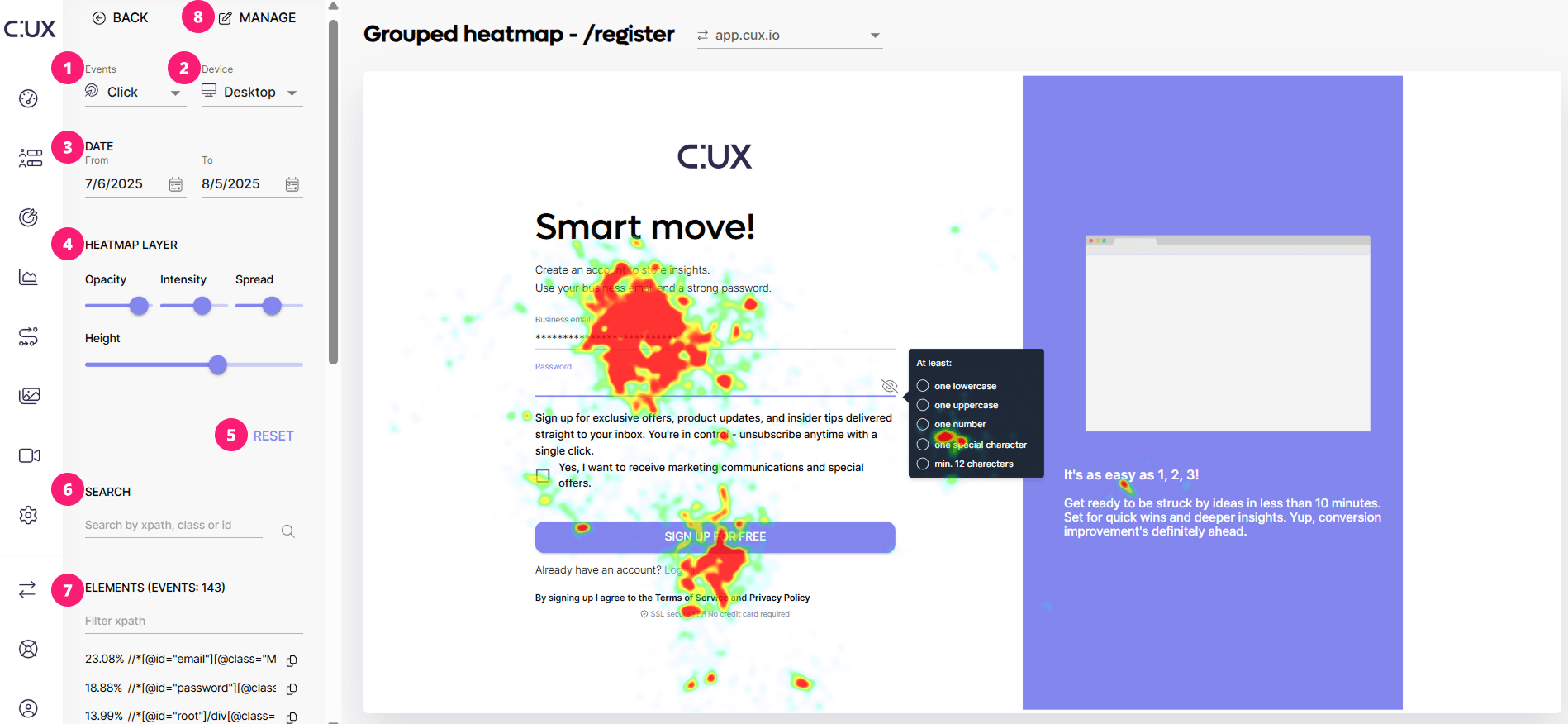
To the left of the heatmap, you'll see a panel featuring:
- Events You can display heatmaps for various events on the website. Choose between:
- Move: shows you where users moved their cursor or touched the screen on mobile devices,
- Click: shows you areas where users clicked,
- Link: shows clicks only on elements defined as clickable in HTML, such as
<a>,<button>, or<input>tags. Keep in mind that this heatmap reflects only a subset of all clicks, unlike the regular - - Click heatmap which captures every click interaction. - Rage Click: shows areas where users clicked rapidly and repeatedly,
- Dead Click: shows clicks on elements that received no response,
- Zoom: shows areas where users were zooming in or out.
- Devices CUX collects data for various devices where your customers interact with your website or product. Display heatmaps for:
- Desktop,
- Mobile,
- Tablet,
- Smart TV,
- Console,
- Wearable,
- Embeded Browsers.
-
Date You can view heatmaps and analyze user interactions with the website/product from any time range (depending on the retention period you choose in the subscription).
-
Heatmap Layer You can freely customize the appearance of the heatmap to make drawing conclusions easier.
- Opacity. Increase or decrease the transparency of heat areas to adjust visibility to your needs.
- Intensity. Find precise user activity points. Increase to find exact click points (if there are lots of events) or decrease to see places of activity better (if you have fewer events).
- Spread. Adjust to focus on single areas. Low spread is recommended for high-traffic pages, high spread for low-traffic pages.
-
Reset Use reset option if you’d like to return to the default state of a heatmap.
-
Search Use the search field to find any element on the page that interests you and filter a heatmap layer only to clicks recorded for this element. We recommend using elements' IDs or classes in this field.
-
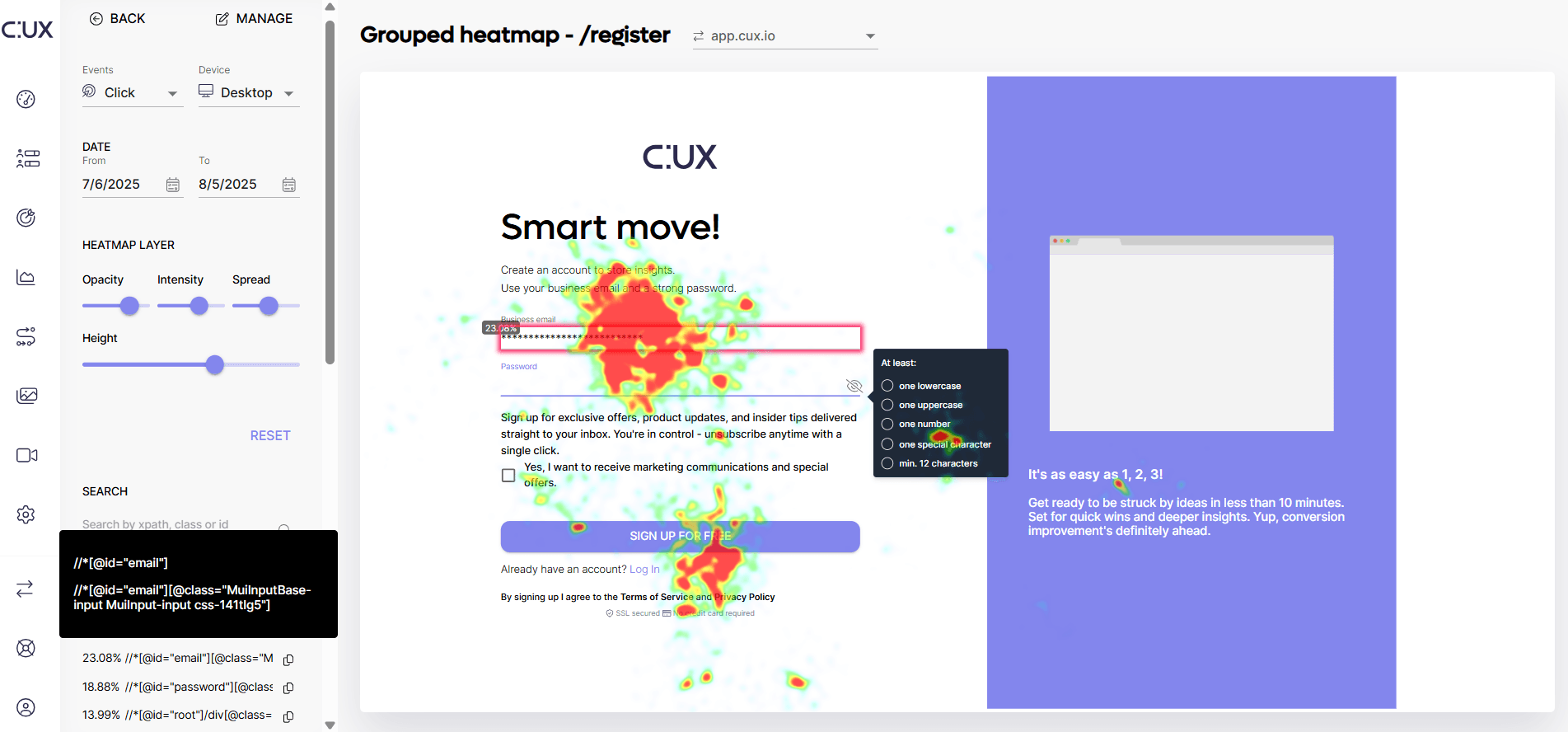
Elements Top 100 of the elements on a page that users interacted with. On the left of the element’s Xpath you’ll see the percentage value which indicates the proportion of events associated with this element compared to all events recorded for the page. Hover over this value to see the exact number of events. Use the icon next to an item to copy its xPath. After hovering over any element’s xPath, the heatmap will highlight it with a pink square. It's important to note that dynamic or conditional elements, such as menus, pop-ups, or tab content, may not be highlighted if they are not currently visible in the visualization. Use Filtr input to find an element you are interested in - you can use element’s class, Id or xPath here.
- Manage
- Here can find additional functions that will help you to analyse heatmap easier:
- Full screen - opens a heatmap layer on a full screen without a side panel.
- Find another preview - this feature allows you to refresh a website preview if it doesn’t meet your expectations or appears broken.
- Export to PDF - opens a window that allows you to export your current heatmap to a PDF.
- Learn more - a shortcut to this article in Knowledge base, allowing you to revisit the detailed walkthrough whenever you need.