On this page
Use dataLayer Capture to find website visits containing events your app sends to window.dataLayer. For example, a checkout_completed event can help you find visits where your app confirmed a completed checkout and use that outcome in a Goal or Waterfall.
The integration reads your website's data layer. It does not create events or install Google Tag Manager for you.
Check what your data layer contains
Before enabling capture, ask your developer to review the objects your website pushes to window.dataLayer. Capture can include fields from those objects, not just their event names. Review the values you send even if you only plan to filter by event.
Keep email addresses, names, payment details, credentials and other sensitive values out of the data you send. Screenshot masking does not filter data layer values. Check your existing collection and consent setup before starting a test.
Your website needs the CUX tracking snippet and a window.dataLayer array available during page initialization. Google Tag Manager commonly uses this array, but your app still needs to push the events you want to analyse.
Enable dataLayer Capture
- Select your website project in CUX.
- Open Project Settings > Integrations.
- Find dataLayer Capture under External Integrations.
- Enable the switch if it is available to you. If it is disabled or shows CONTACT US, contact support in the app to confirm availability and enablement for your project.
- Reload your test page and run a short journey to check collection.
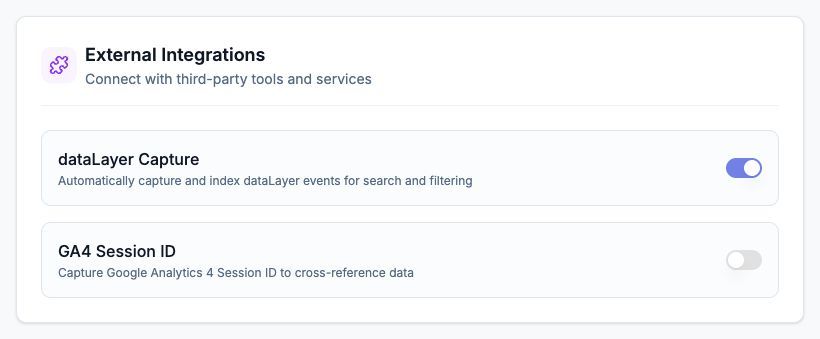
Example: dataLayer Capture is enabled. Available controls depend on your access.
Start with one event
Ask your developer to send an event when the app confirms the outcome, not simply when someone clicks a button. This fictional example sends no customer details:
window.dataLayer = window.dataLayer || [];

window.dataLayer.push({
  event: 'checkout_completed',
  currency: 'USD',
});
Here, event is the field name and checkout_completed is its value. currency is a separate field that adds context. You can filter by either field if it was captured.
When the integration initializes, it reads items already in the array and observes later pushes. It does not recover data from visits recorded before the integration was enabled.
CUX does not store every data layer item. Captured objects need an event field. Some technical, consent and other event names are excluded, and some fields are removed before storage, including user_data. Nested ecommerce objects are not stored as complete payloads. These exclusions are not a substitute for reviewing sensitive values before sending them.
An event name is stored only once per visit. Use this integration to find visits containing an event, rather than to count every repeated occurrence or compare changes in its values within one visit.
Find matching visits
- Open Visits in the same CUX project and choose the period containing your test.
- Open Advanced Filters and scroll to GTM Integrations > dataLayer Variables.
- Enter
eventin Field name. - Enter
^checkout_completed$in Expected value. - Select Apply Filters and inspect the matching visit.
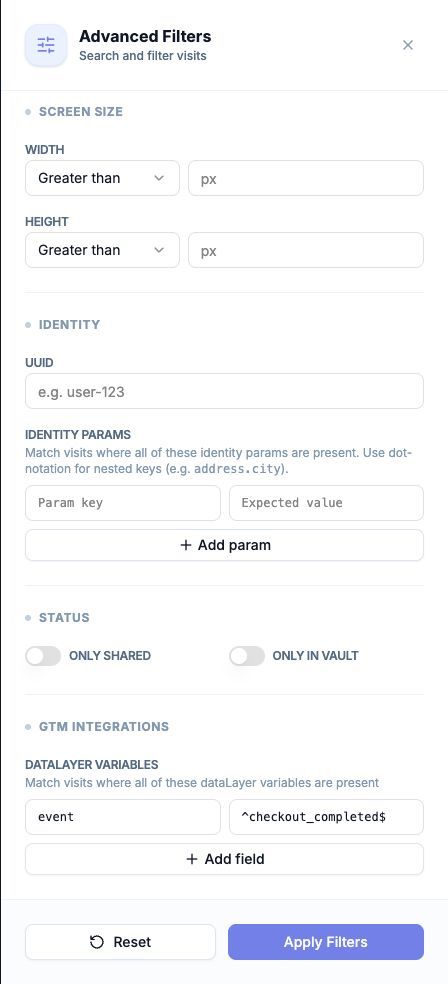
Example: the filter finds the event sent by the test journey.
Text values use regular-expression matching. The ^ and $ anchors make this example match the whole value. A plain checkout_completed pattern can also match a value containing that text. * alone is not a valid match-anything pattern; do not use it as a wildcard.
Use Add field when you need another condition from the same captured object, such as currency and ^USD$. All configured field/value conditions must match that object.
Use the event in a Goal or Waterfall
Open your Goal or Waterfall editor and add or select a step. Choose GTM Event, then configure GTM dataLayer Variables with the same pair:
| Field name | Expected value |
|---|---|
event | ^checkout_completed$ |
Give the step a recognizable name, such as Checkout completed, and save the Goal or Waterfall.
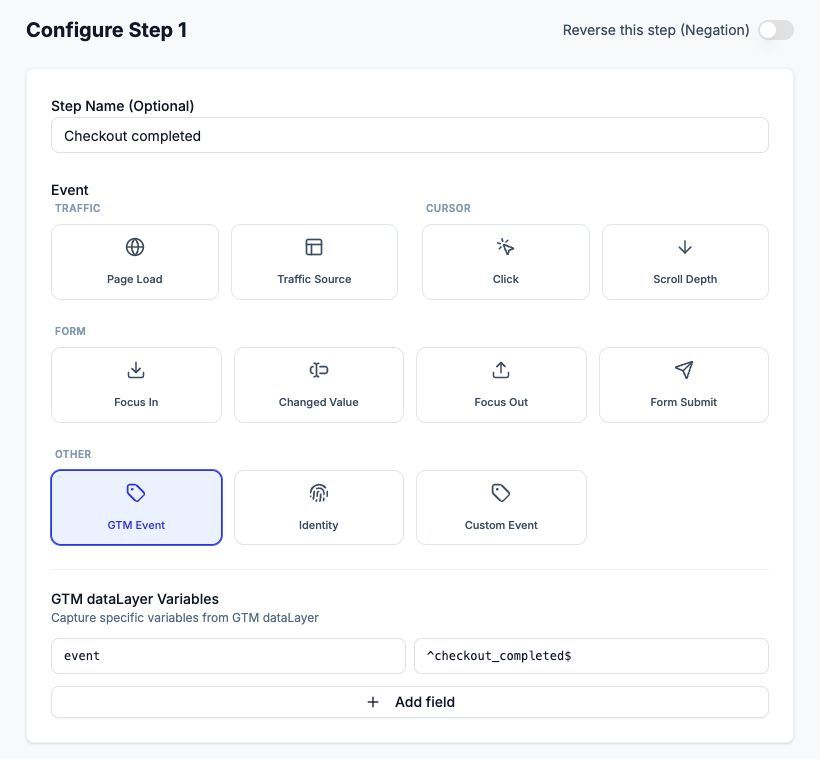
Example: the shared step editor uses the same event condition as the Visits filter.
For a checkout Waterfall, use the confirmed outcome after the steps leading to checkout. Then inspect relevant visits to understand where people stop or repeat actions. A click on Pay and a confirmed checkout are different steps; the event should describe the outcome your app actually knows.
Verify the setup
Use synthetic data. Complete the test action once, confirm the object was pushed and find its event in the matching CUX visit. Repeat the journey without completing the action and check that the success event is absent.
If no visit matches, check the project, date range, integration state and exact field/value pair. Ask your developer to confirm that the data layer is available early enough and that the event is actually pushed. Do not add personal information to make the visit easier to identify.
The screenshots use example data. Use your own event names and values when configuring your project.
Contact support in the app
- Sign in to the app and select the project related to your question, if applicable.
- Open Help and support in the top bar and select Contact Support.
- Describe what you tried, what happened and what you expected, then select Send request.
To check progress or add details, open Help and support > My support requests, select the request and reply in the same conversation. Continue an existing request when it concerns the same issue.
Do not include passwords, project tokens or unredacted customer data.