Only the organization's administrator can add or remove Goals and Waterfalls from a Simple Weekly Report. You can find the information about your organization administrator on your project Settings >> Details page. To add Goals or Waterfalls to a report:
- Open your Goals or Waterfalls page.
- Find the Goal or Waterfall you want to add to your Simple Weekly Report.
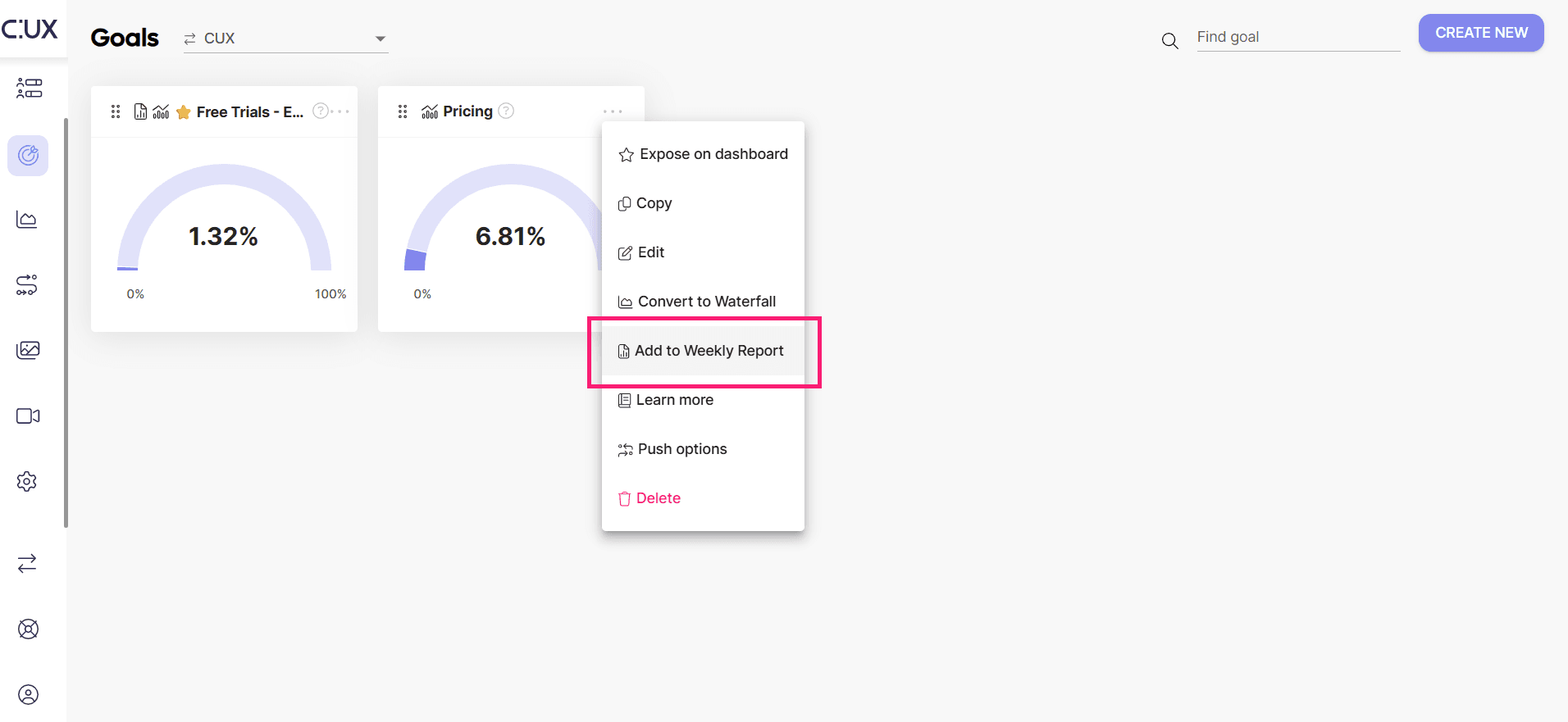
- Open its contextual menu (“Manage” button on a Waterfall, three dots icon on a Goal) and select a menu option “Add to Weekly Report”.
 Please note that if your report is currently inactive (the toggle button is switched off) - adding Goal or Waterfall to a report will switch it on again.
To remove Goals or Waterfalls from a report:
- Go to your Goals or Waterfalls page.
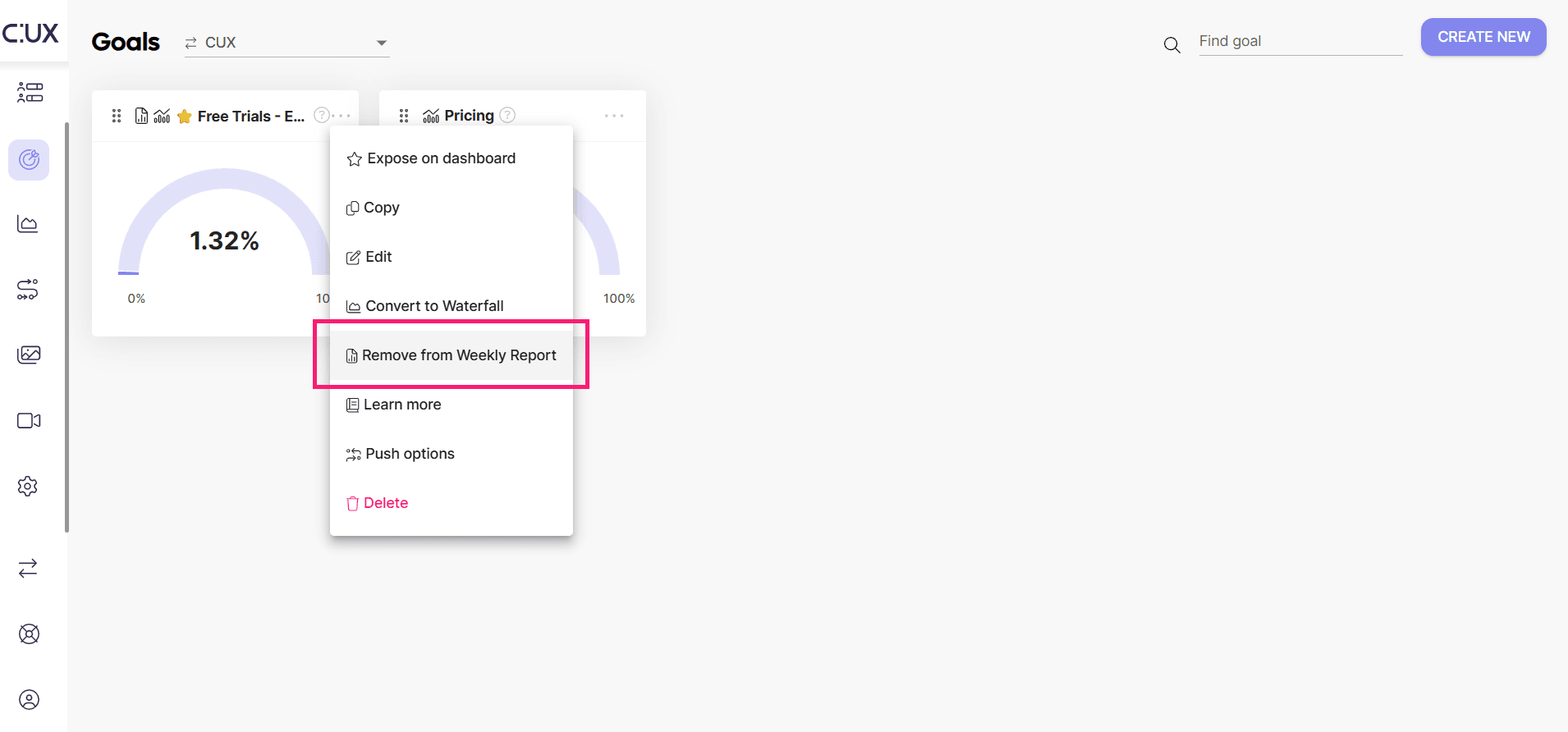
- Find the Goal or Waterfall that was added to your Simple Weekly Report - they are marked with a report page icon. Open its contextual menu (“Manage” button on a Waterfall, three dots icon on a Goal) and select a menu option “Remove from Weekly Report”.
- Confirm the action by clicking “Yes, remove” on a confirmation pop-up.
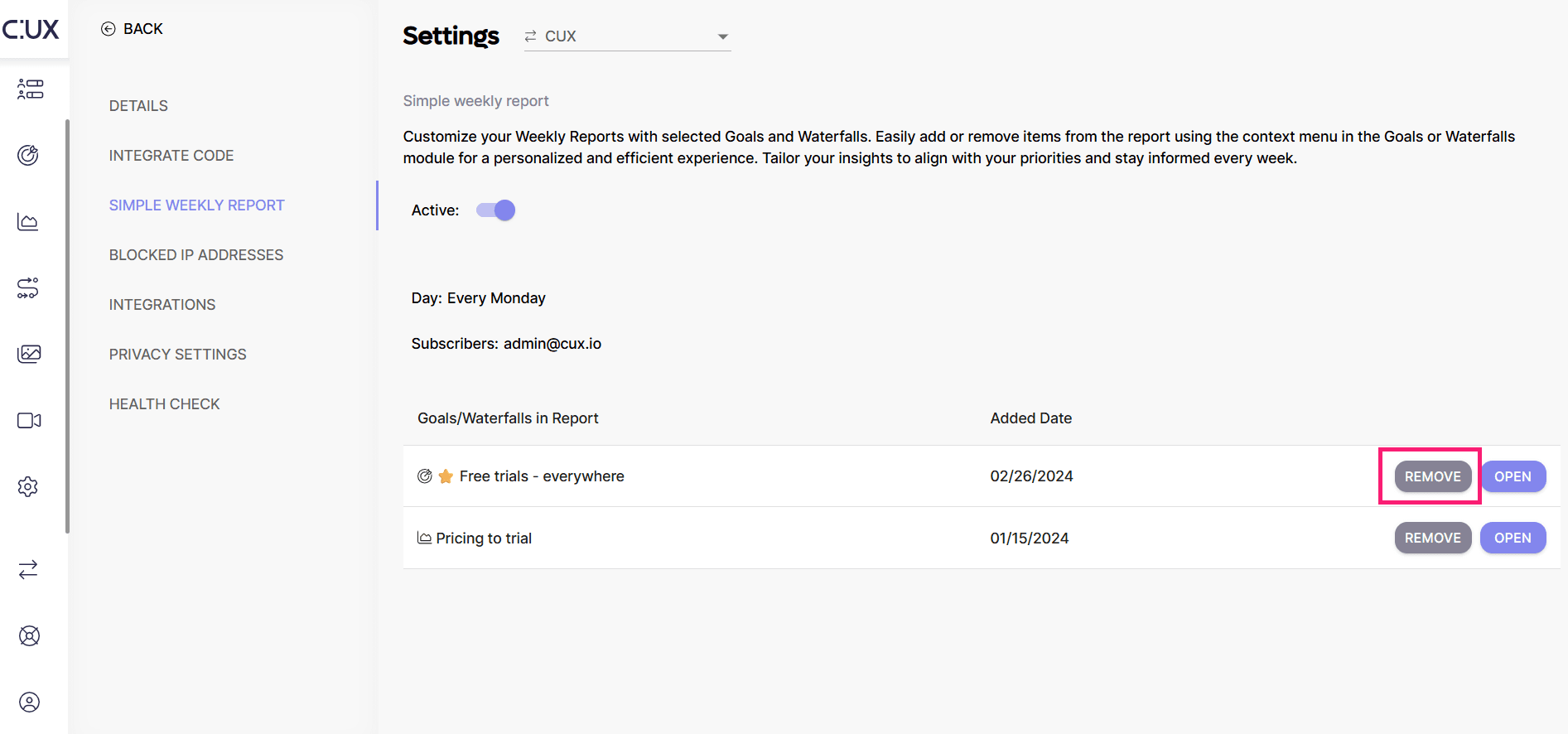
 You can also remove Goals or Waterfalls from the level of the Simple Weekly Report settings page. To do so:
 - Open your project’s Settings >> Simple Weekly Report page.
- Find the Goal or Waterfall you want to remove from a report.
- Click the Remove button.
- Confirm the action by clicking “Yes, remove” on a confirmation pop-up.