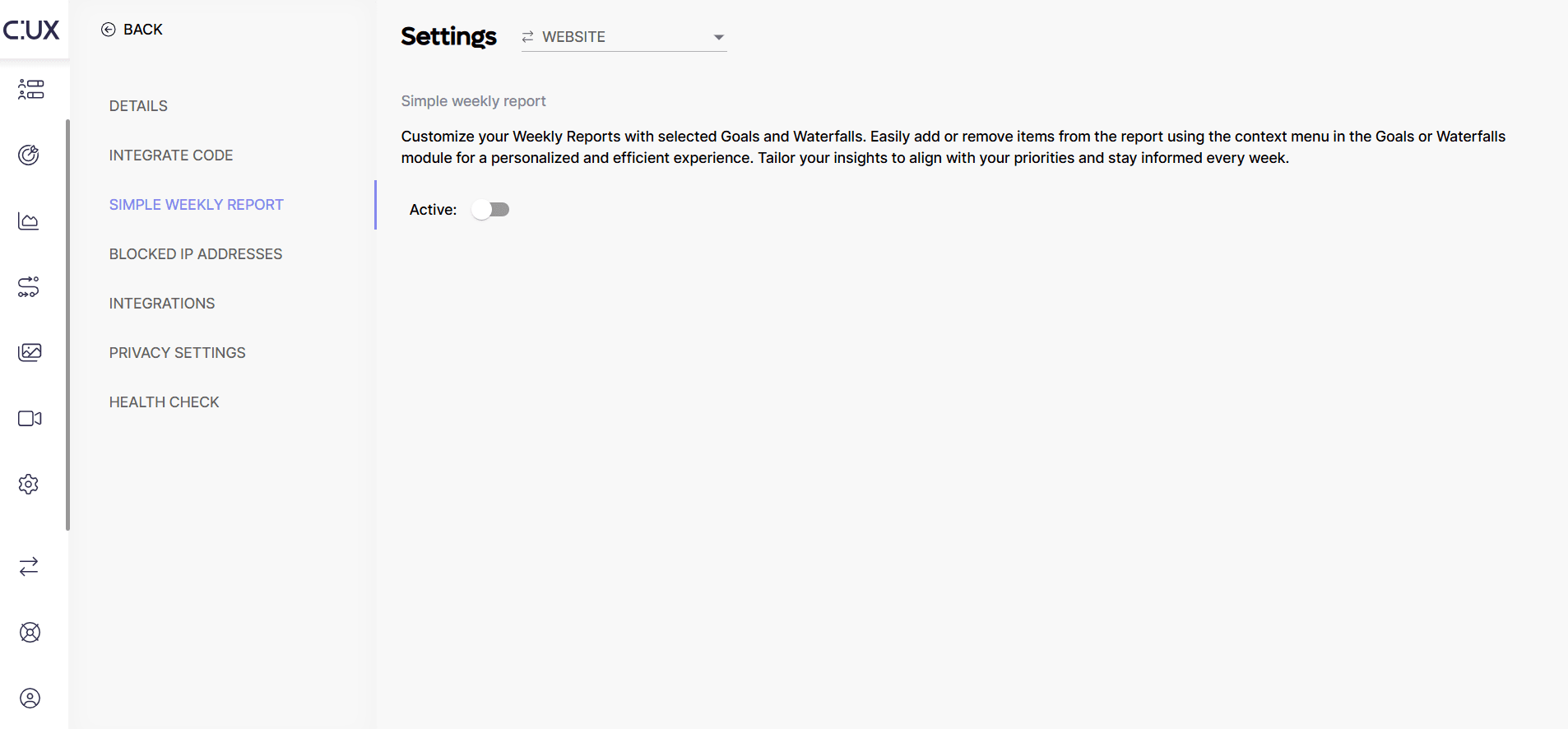
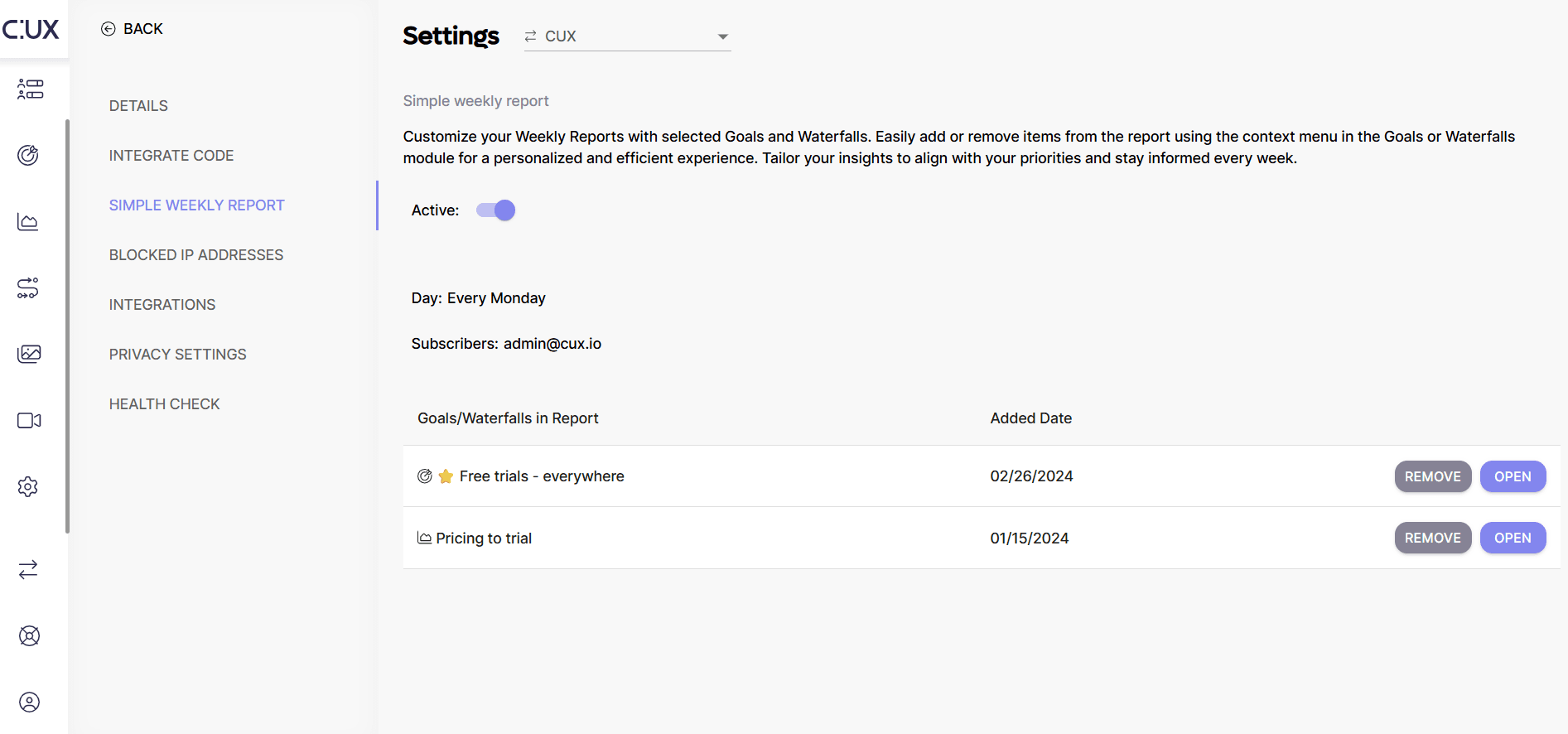
Where to find Simple Weekly Report feature page in CUX You can find your Simple Weekly Report page in your project Settings >> Simple Weekly Report. On this page, you will find:
- The state of your report (you will receive reports if the toggle button Active is on)
- Report main settings (sending day and subscribers)
- Which Goals and/or Waterfalls are currently added to a report
How to create a report The first Simple Weekly Report will be created when you activate the toggle Active in Project Settings >> Simple Weekly Report tab, or when you add your first Goal or Waterfall to it using the “Add to Weekly Report” option in the Goal or Waterfall contextual menu.
How to change the list of report subscribers By default, the report will be sent to an email of your CUX organization admin. You can find the information about your organization administrator on your project Settings >> Details page. Please note that the option to edit the list of report subscribers isn't currently available. We're looking forward to bringing you this feature in an upcoming updates!
How to switch off the active report If you don’t want to receive Simple Weekly Reports anymore you can easily switch it off. There are two ways how you can do it:
- Switch the “Active” toggle button into the off position. This action will pause the report sending but will preserve all your settings. So if you switch the toggle on again - it will keep all Goals and Waterfalls added before.
- Remove all Goals and Waterfalls from the report. If there is no Goal or Waterfall added to the report, the toggle button “Active” will automatically switch off. Turning the report back on will set it on your main Goal and Waterfall (those selected to be shown on a Dashboard), but won’t restore removed Goals and Waterfalls. Please note that if you have no Goal selected to be shown on a dashboard - you won’t be able to activate the report in this scenario. In this case, add a Goal to a Dashboard first or use another option of adding Goals and Waterfalls to a report described below.