In some cases, you may not be able to use the Visual Editor to extract the xPath. This can happen if it is blocked due to xFrame options or CSP (Content Security Policy) settings, or simply when certain areas of a website or web application are not accessible through the Visual Editor and require special access. As an alternative, you can extract an xPath directly in your browser and use it to configure Click or Form events. This method ensures you can still track interactions without depending on the Visual Editor.
How to extract a xPath manually:
- Open the website in your browser and navigate to the element you want to track (for example, a button or form field).
- Right-click the element and select Inspect.This will open the Developer Tools panel and highlight the element’s HTML code.

- In the Developer Tools, make sure the correct element is highlighted in the Elements panel.
- Right-click the highlighted HTML line in the panel or click the three dots on the left to open the contextual menu.Select Copy → Copy XPath.
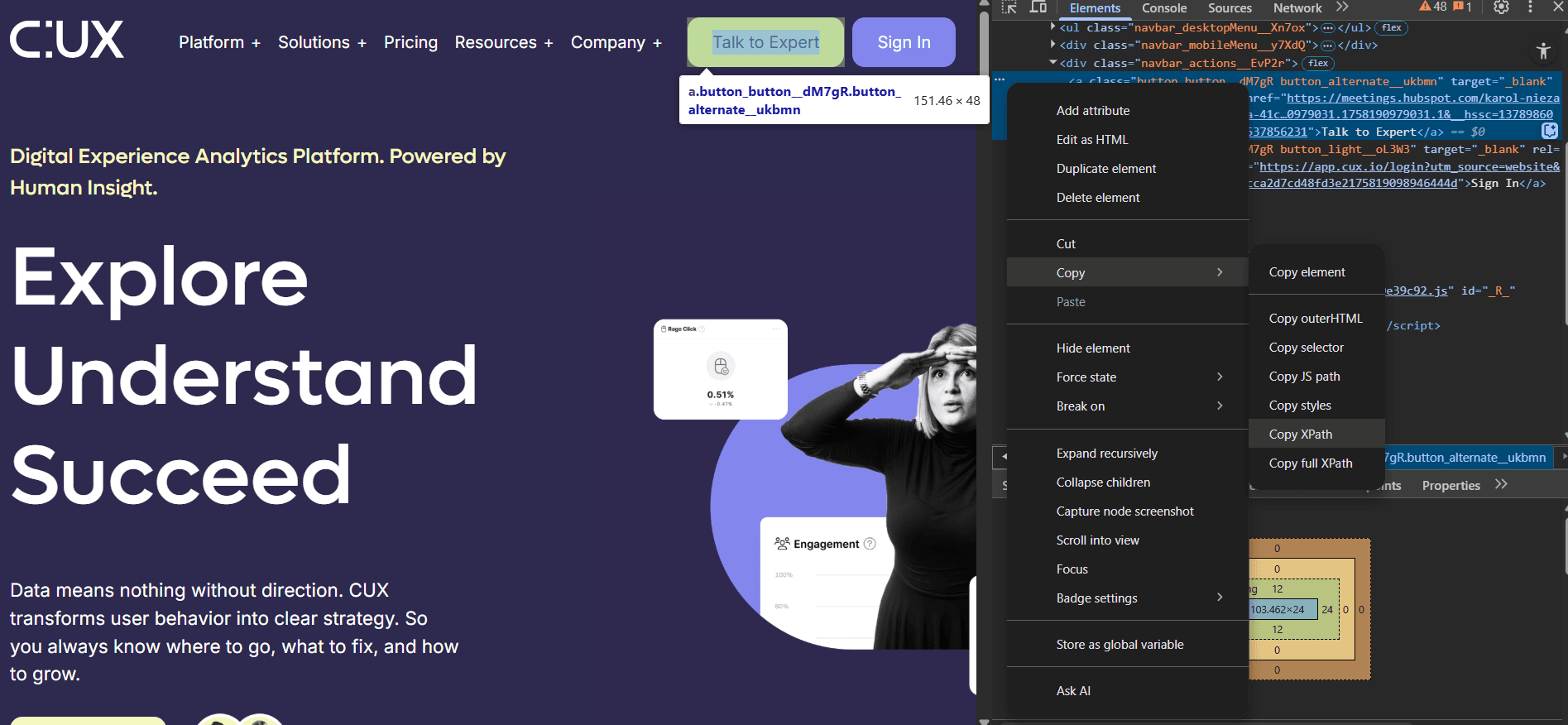
- The xPath is now copied to your clipboard. You can paste it into the event configuration settings in CUX.