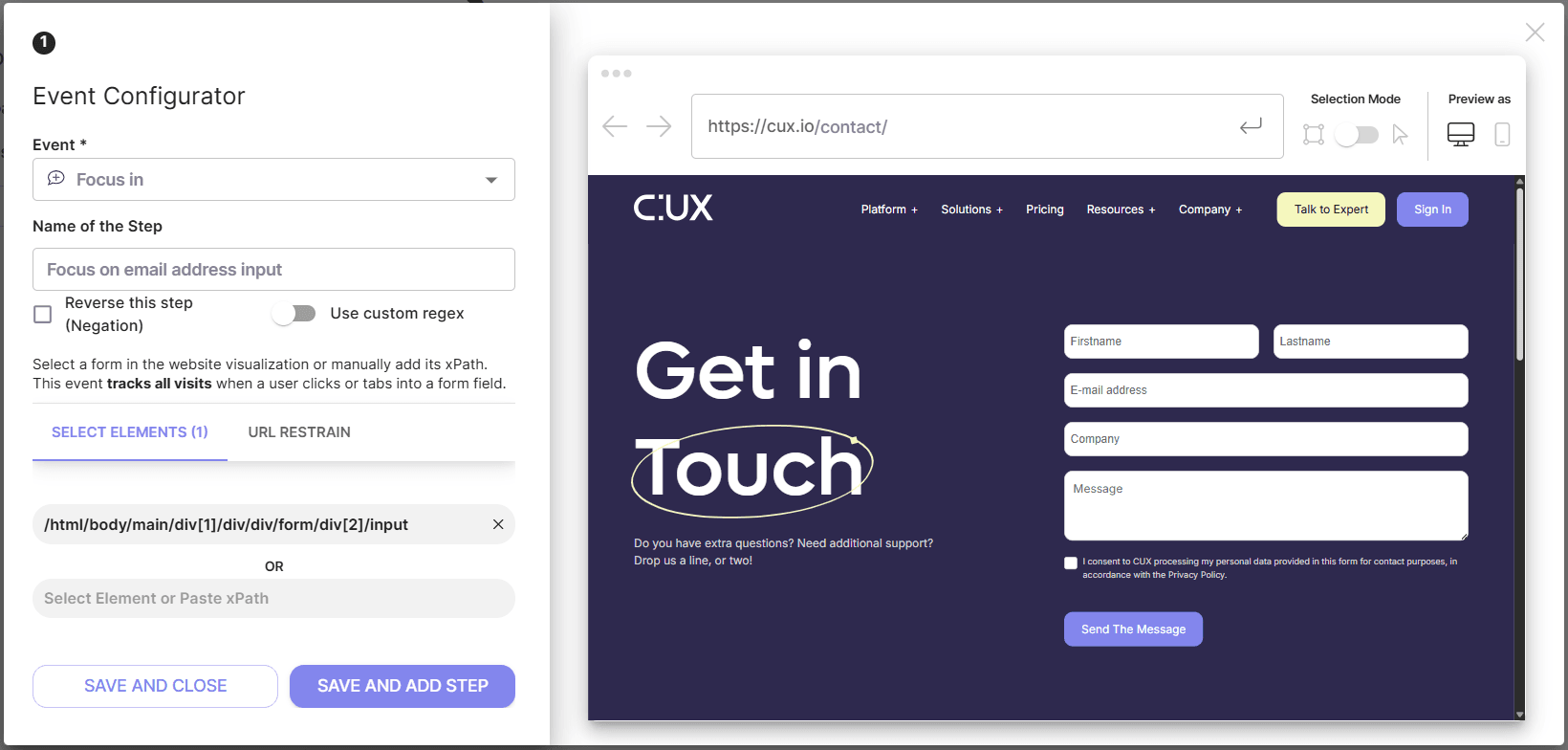
Those events help you follow visitor actions in form fields. These actions include putting the mouse cursor in the field, changing the field’s content, moving out of the field, or form submission. In CUX’s Goal or Waterfall editor, you’ll find the next types of Form events split by type of user interaction with a form:
- Focus in. When users click or tab into a form field. The event is recorded regardless of the input device people use to navigate through your form – whether they use a mouse, keyboard, or other tools is not essential, as the primary thing here is the focus on the field.
- Changed. Whether someone edits a form, enters new data, or changes the field content. All typing, deleting, and overwriting match this event. Please note that you won’t be able to track specific values inside the fields as CUX encrypts all content of inputs by default to protect your users' privacy.
- Focus out. The event when someone moves the pointer out of a form field or switches to another input. You’ll see users stop typing in a field and move forward.
- Submit. When someone clicks the submit button, and data entered in the form is sent to your server. The Submit event is more reliable than Click because it is based on the actual event of submitting the form and not just clicking a button. Please note that the Submit event requires the xPath of the entire form, not just the submit button. You can find it by locating the tag at the beginning of the form element in your page’s HTML.
NOTE: Submit event may not work if you have opt-ins or Captcha to click. To be sure that the form was successfully submitted, add one more step – tracking the page load of the form submission confirmation page. Another option will be to set a Goal or Waterfall step for the Click event on the form button (instead of the Submit event) and compare the results.
To set any of Form events:
- Choose one of the Form events:
- Focus in
- Changed
- Focus out
- Submit
- Type the Name of the Step (optionally);
- Insert the XPath of the element you want to track. You can do it two ways:
- simply click on a desired element on the visual editor;
- or paste an element’s XPath in an input manually;
- Save the event.
Remember that you can add more than one XPath to Form events. They will be connected with the OR logic which means CUX will filter recordings that contain a selected type of interaction with at least one of the selected elements. If you want to track visits where each of the selected elements had selected type of interaction - we recommend setting them as separate events.