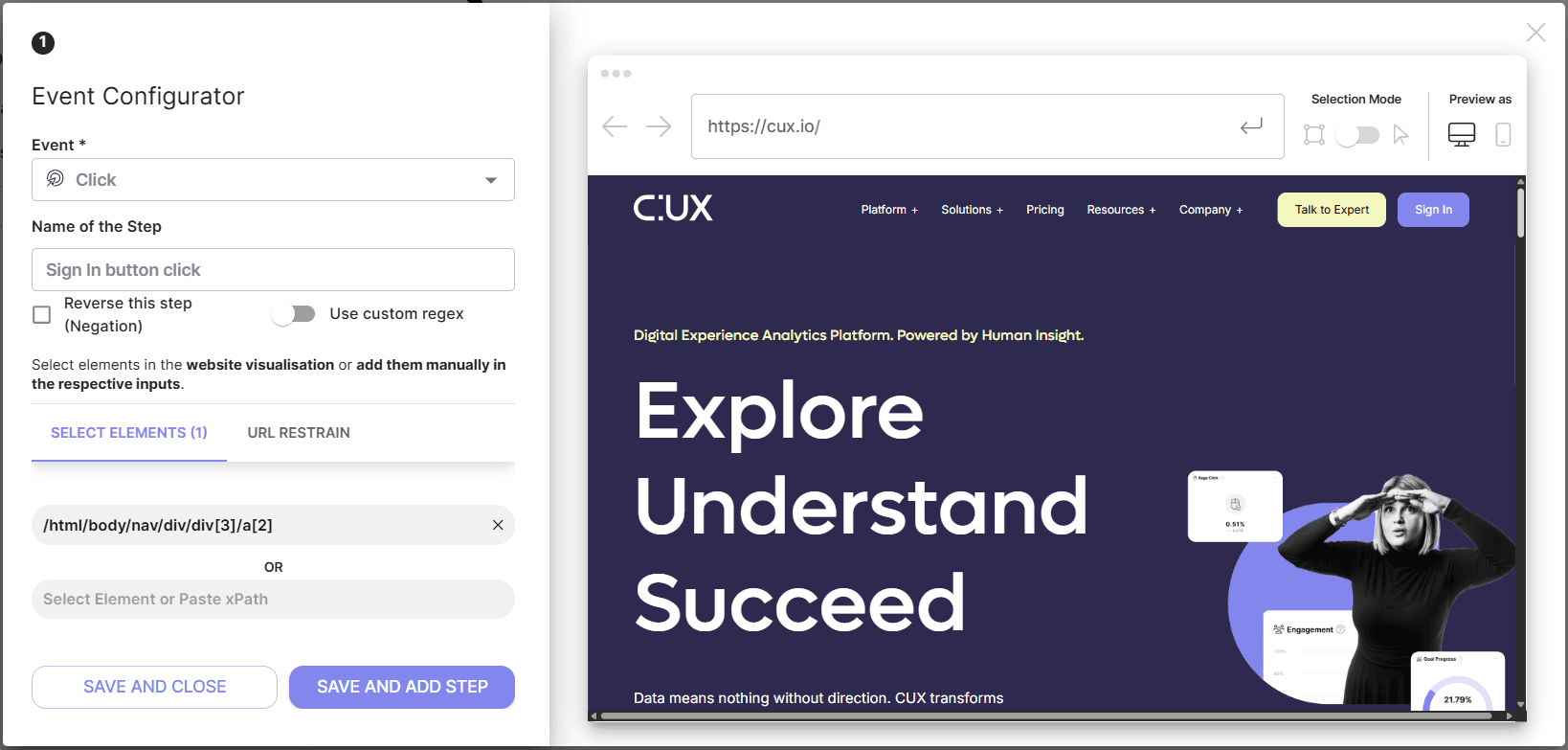
Click event allows you to base a step in your Goal or Waterfall on specific elements that users click while navigating your pages - like buttons, links, images, etc.
To set a Click event:
- Choose the event “Click”;
- Type the Name of the Step (optionally);
- Insert the XPath (the address of a particular element in your webpage HTML document) of the element you want to track. You can do it two ways:
- simply click on a desired element on the visual editor;
- or copy and paste an element’s XPath in an input manually.
- Save the event.
Remember that you can add more than one XPath to a Click event. They will be connected with the OR logic which means CUX will filter recordings that contain clicks on at least one of the selected elements. If you want to track visits where each of the selected elements was clicked - we recommend setting them as separate events.
For more advanced targeting you can also use such Click event features as URL restrain or Custom regex or use elements’ class or ID instead of a xPath.