On this page
You can request a reset when you cannot sign in, or change your password from Profile Settings when you already have access.
Reset a forgotten password
- Open the login page.
- Enter your email and continue to the password step, then select Forgot password?. You can also open the password reset page.
- Enter the account's email and submit the reset request.
- Open the reset email and follow its link.
- Enter and confirm a new password that meets the displayed requirements, then submit the form and sign in.
Check spam, junk and company email quarantine if the message is missing. If the link cannot be used, request another reset rather than forwarding it to someone else.
Change your password while signed in
- Open the user menu in the top-right corner.
- Select Profile Settings > Security.
- Fill in New Password and Confirm New Password.
- Select Update Password and check the confirmation.
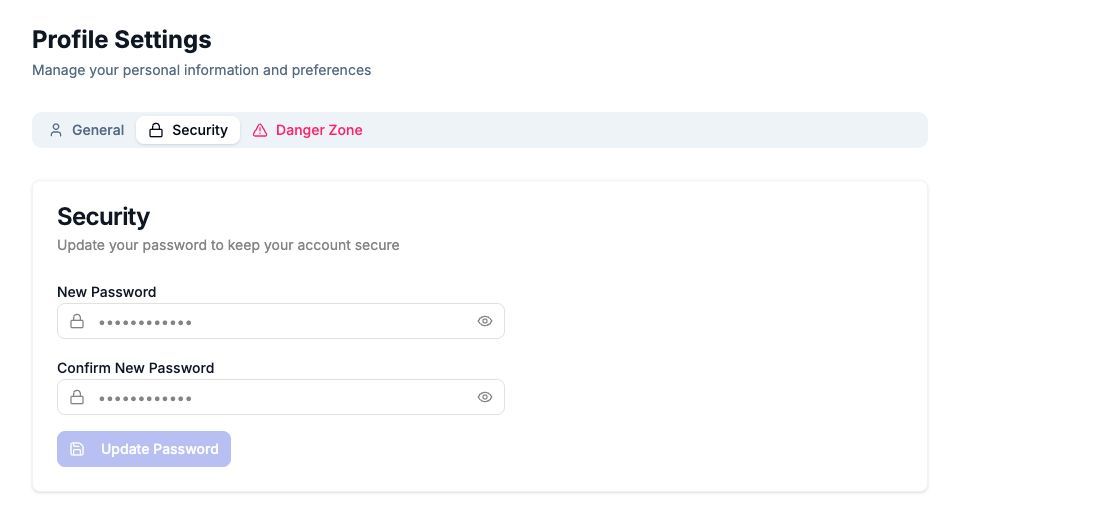
The screenshot contains empty fields with placeholder dots, not a real password.
If your organization uses SSO
Manage your identity-provider credentials through your organization's SSO process. If password sign-in is not offered, contact your organization admin rather than assuming a reset will enable it.
If you no longer have access to the account's email or cannot resolve the reset flow, use the email contact below. Never send your password or reset link.
If you cannot sign in
If a sign-in, registration or password-reset problem prevents you from using support in the app, email support@cux.io. Describe the problem, the account email and any error message. Do not send passwords, verification codes, invitation links or password-reset links.
Once you can sign in, use support in the app for other questions.
Contact support in the app
Use this route when you can sign in.
- Sign in to the app and select the project related to your question, if applicable.
- Open Help and support in the top bar and select Contact Support.
- Describe what you tried, what happened and what you expected, then select Send request.
To check progress or add details, open Help and support > My support requests, select the request and reply in the same conversation. Continue an existing request when it concerns the same issue.
Do not include passwords, project tokens or unredacted customer data.