On this page
Invite a teammate to your organization so they can work with your team's projects. You need organization admin access and an available member seat.
Open the Members page
- Open the user menu in the top-right corner of the app.
- Select Organization.
- Open the Members tab.
This is the organization-level members page, not an individual project's settings.
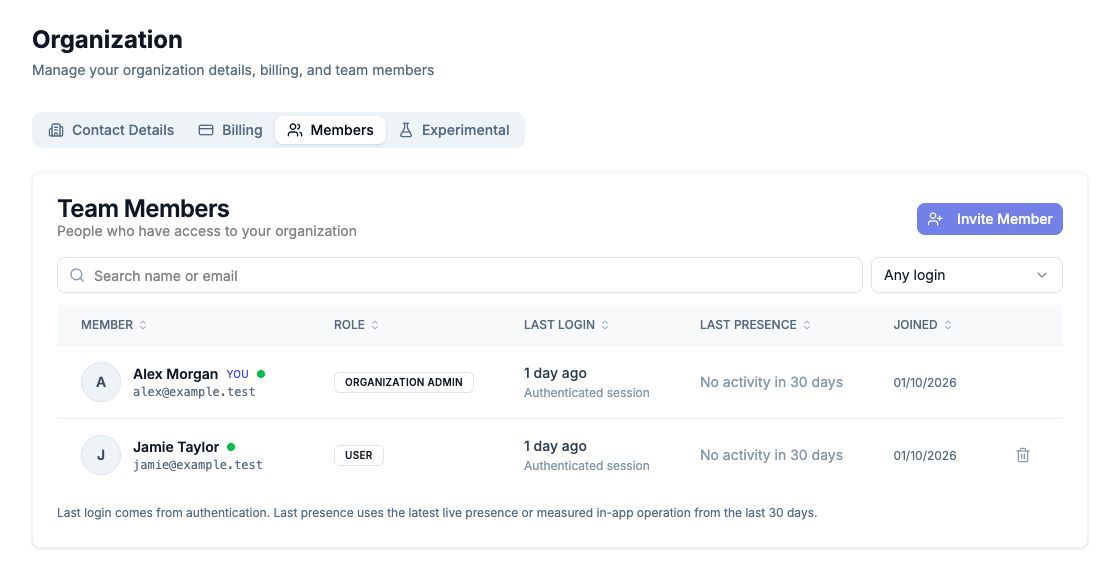
Example organization and members. Your list will show your own team.
Send an invitation
- Select Invite Member above the list.
- Enter your teammate's email in Email Address.
- Check the organization name in the dialog, then select Send Invitation.
- Look for the Invitation sent! confirmation.
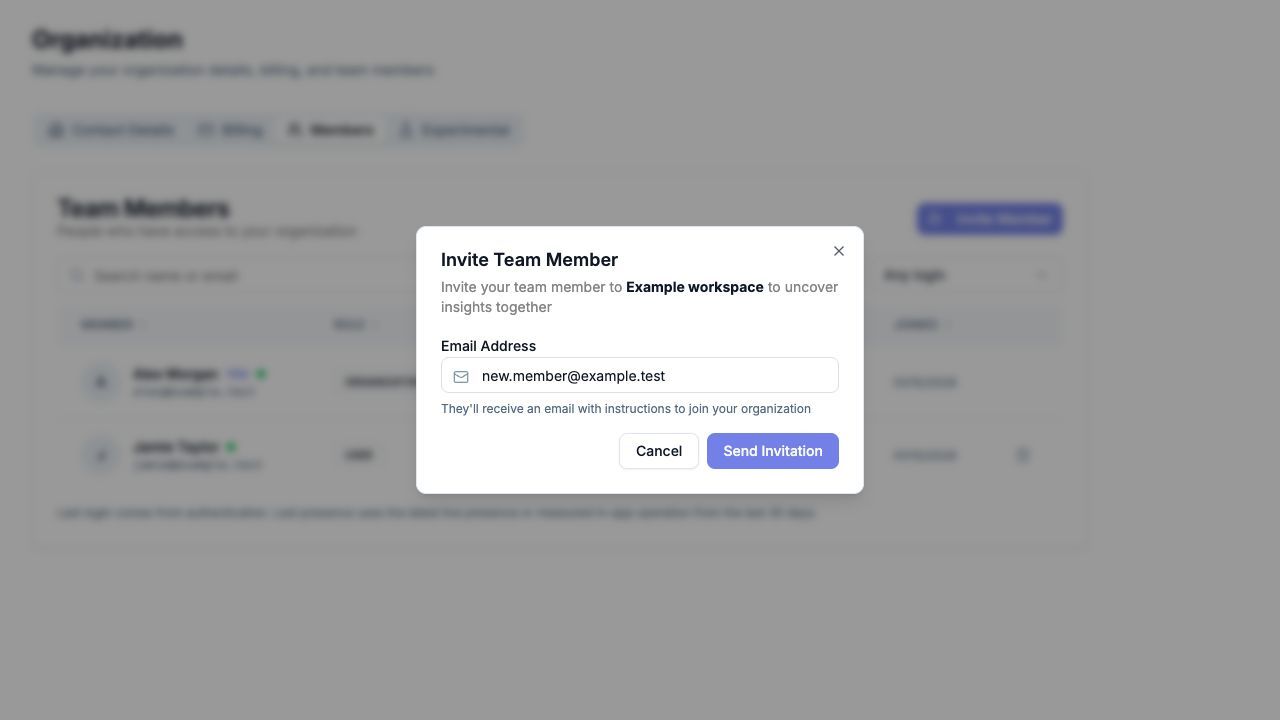
The invitation is for the organization named in the dialog. You do not select an individual project or assign a role in this form.
If Organization or Invite Member is unavailable, ask your organization admin to send the invitation. If you see Members Limit Reached, the organization has no available seats under its current limit. Use the contact option in that dialog to discuss available seats before continuing.
Join from the invitation email
Ask your teammate to open the invitation and select Set Up Your Account. The link opens the password setup page. They should complete the form, then sign in with the invited email address.
To join an existing team, use its invitation rather than registering separately. A separate registration does not join that organization.
Check that your teammate can sign in and access the intended organization. Their appearance in the Members list alone does not confirm that the invitation email was delivered or opened.
If the invitation does not arrive
Check that the address was entered correctly, then ask your teammate to check spam, junk and any company email quarantine. Their IT team can check whether invitation messages from CUX are being filtered.
If the form says the email already has a CUX account, ask them to sign in directly. If they still cannot access your organization, contact support to resolve the account's organization access. Do not create another account as a workaround.
If the invitation still cannot be found or its link cannot be used, contact support with the organization name, invited email address and approximate time you sent it. Do not forward the invitation link or a password.
Contact support in the app
- Sign in to the app and select the project related to your question, if applicable.
- Open Help and support in the top bar and select Contact Support.
- Describe what you tried, what happened and what you expected, then select Send request.
To check progress or add details, open Help and support > My support requests, select the request and reply in the same conversation. Continue an existing request when it concerns the same issue.
Do not include passwords, project tokens or unredacted customer data.